MiAgendar: your online schedule
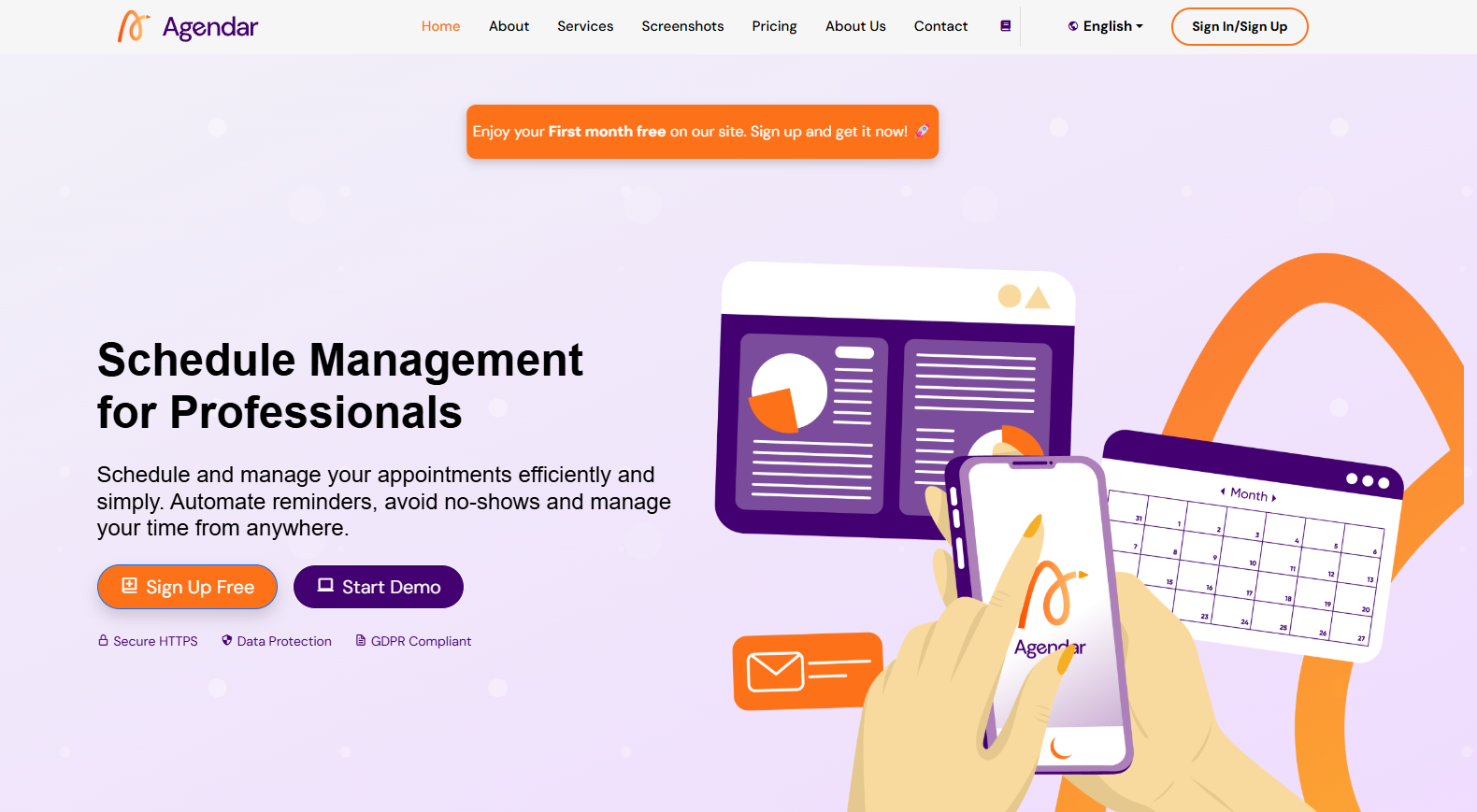
This guide explains step by step how to use the system to manage appointments, clients, professionals and your clients' online booking. Scroll down or use the side index to jump to each section.
capturas/00-portada.png1 Sign up and log in
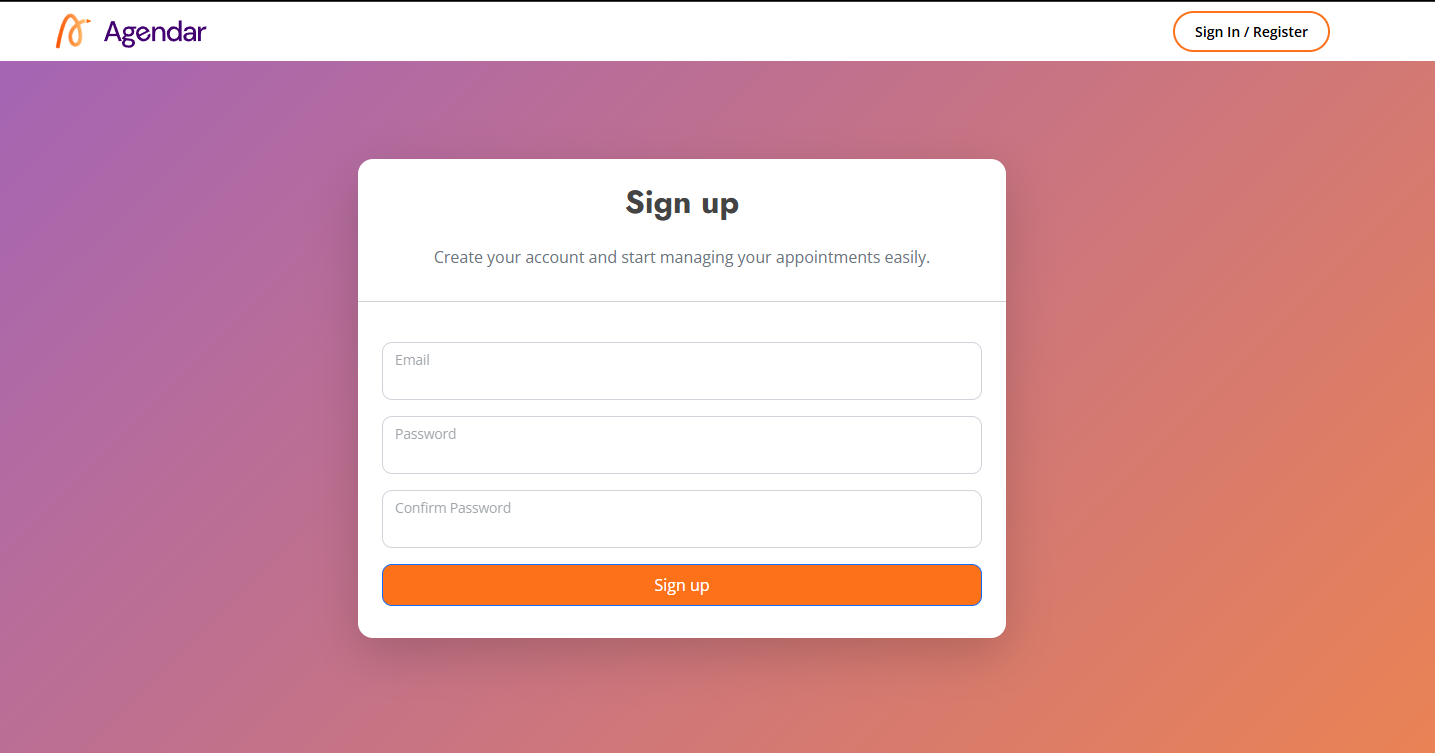
To start using the system you need to create an account. Sign-up is a multi-step form with a progress bar.
- Account: enter your email (it will be your username) and a password of at least 6 characters.
- Professional: fill in your first name, last name and profession.
- Business: enter your business name and type.
- Confirmation: review the summary and click Complete registration.
capturas/01-registro.png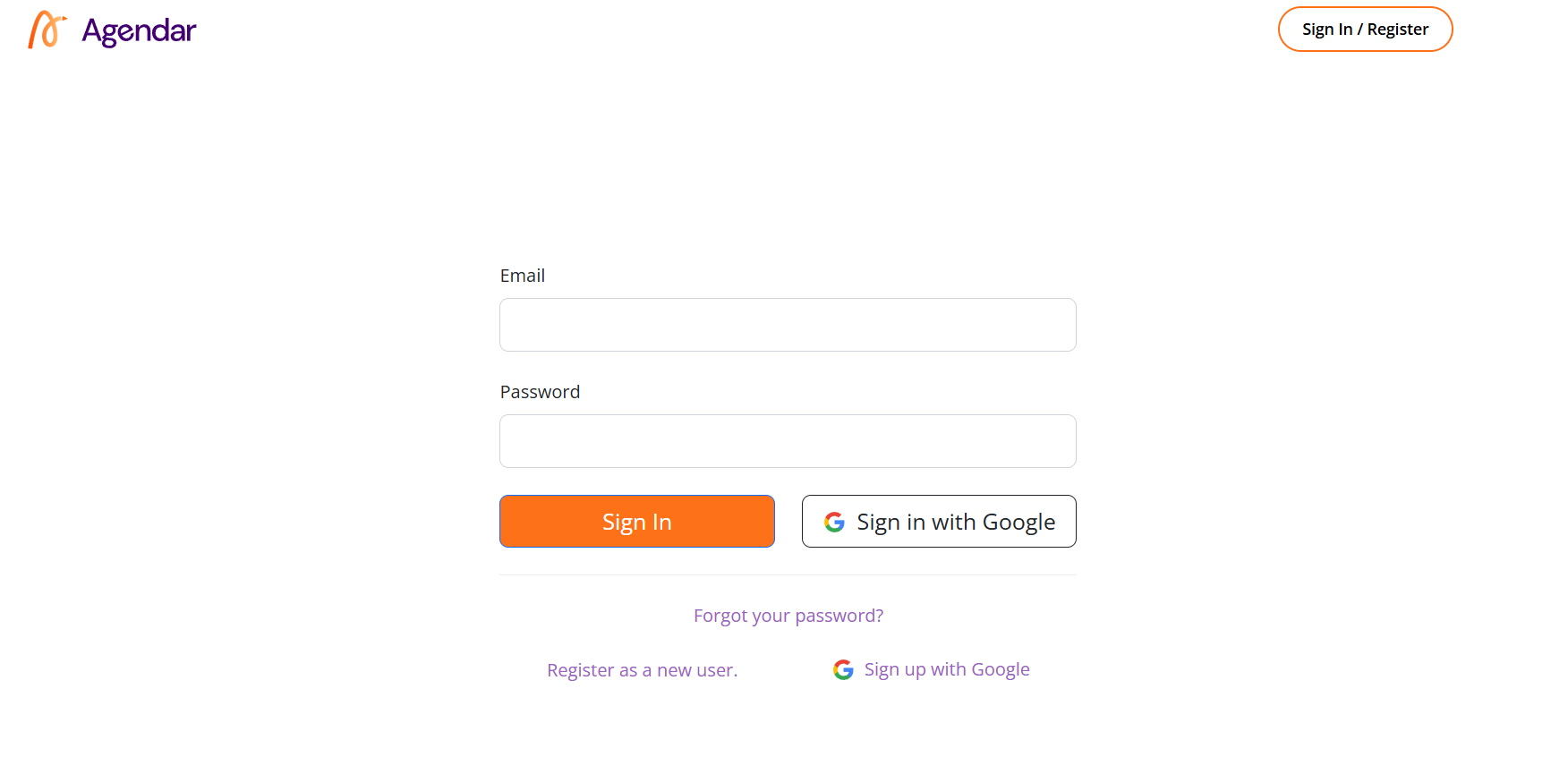
capturas/01-login.png2 Main menu
The menu at the top gives you access to every section of the system:
| Option | What it's for |
|---|---|
| New Appointment | Schedule new appointments and check time availability. |
| Schedule | See scheduled appointments in detail on a calendar. |
| Clients | Browse the client list, edit clients and access their appointment history. |
| Appointment History | See all registered appointments, from the most recent to the oldest. |
| Settings | Manage professionals, schedules, email, personal and business data. (Admin only) |
| Subscription | View and manage your plan. |

capturas/02-menu.png3 Schedule
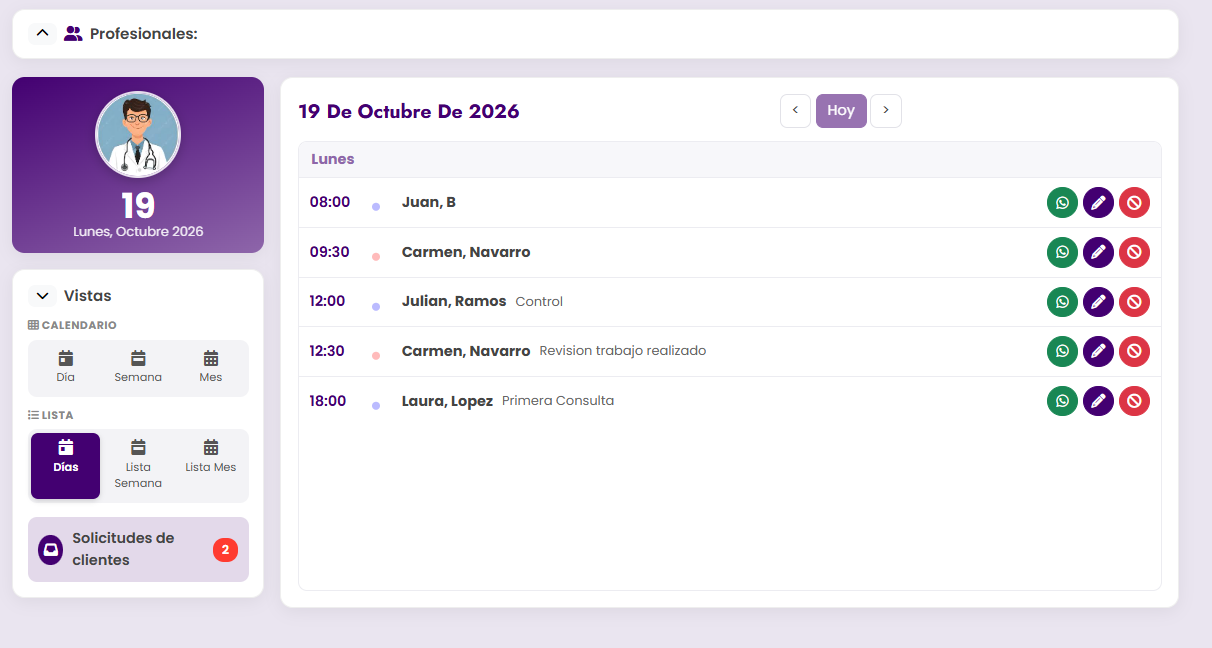
The Schedule shows all confirmed appointments on a calendar. It is the main screen of the system.
capturas/03-agenda.pngCalendar views
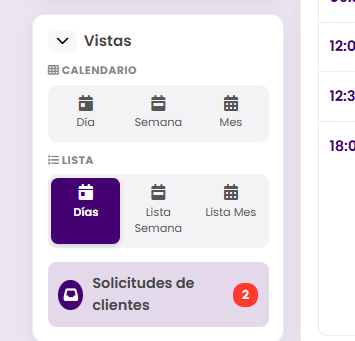
You can switch the view to see events by day, week or month. If you are an Admin, the side panel lets you choose which professionals to display; each one has its own color.
capturas/03-agenda-vistas.pngView, edit or cancel an appointment
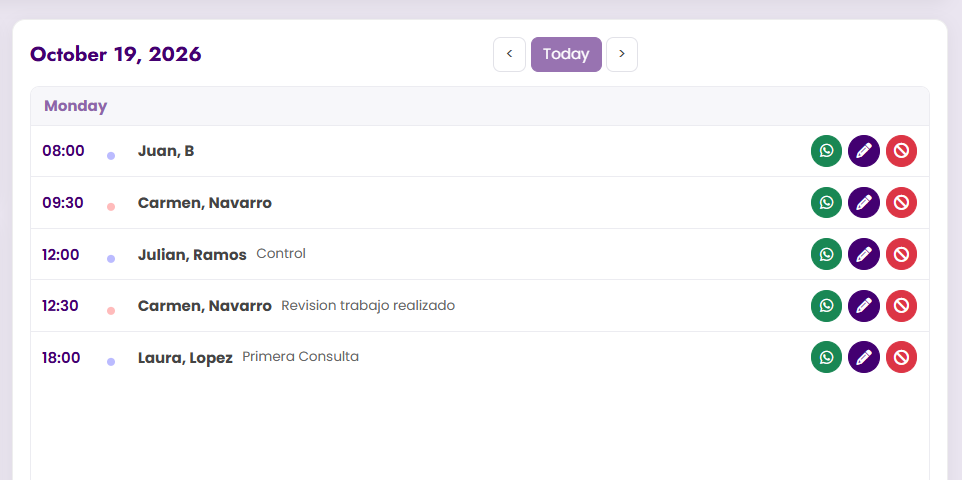
Click an appointment to open its details. From there you can:
- See the client's details, phone, email and note.
- Send a reminder via WhatsApp.
- Modify the date and time: a calendar with available times opens.
- Cancel the appointment.
capturas/03-detalle-cita.png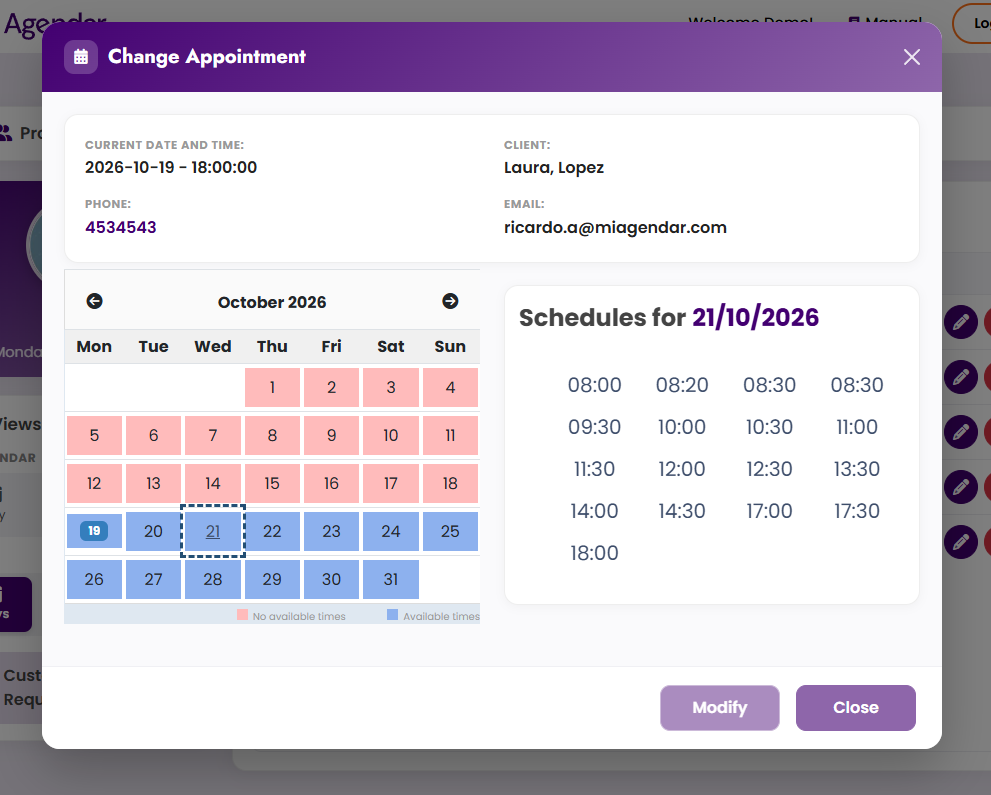
capturas/03-editar-cita.png4 New appointment
This is where you book appointments manually.
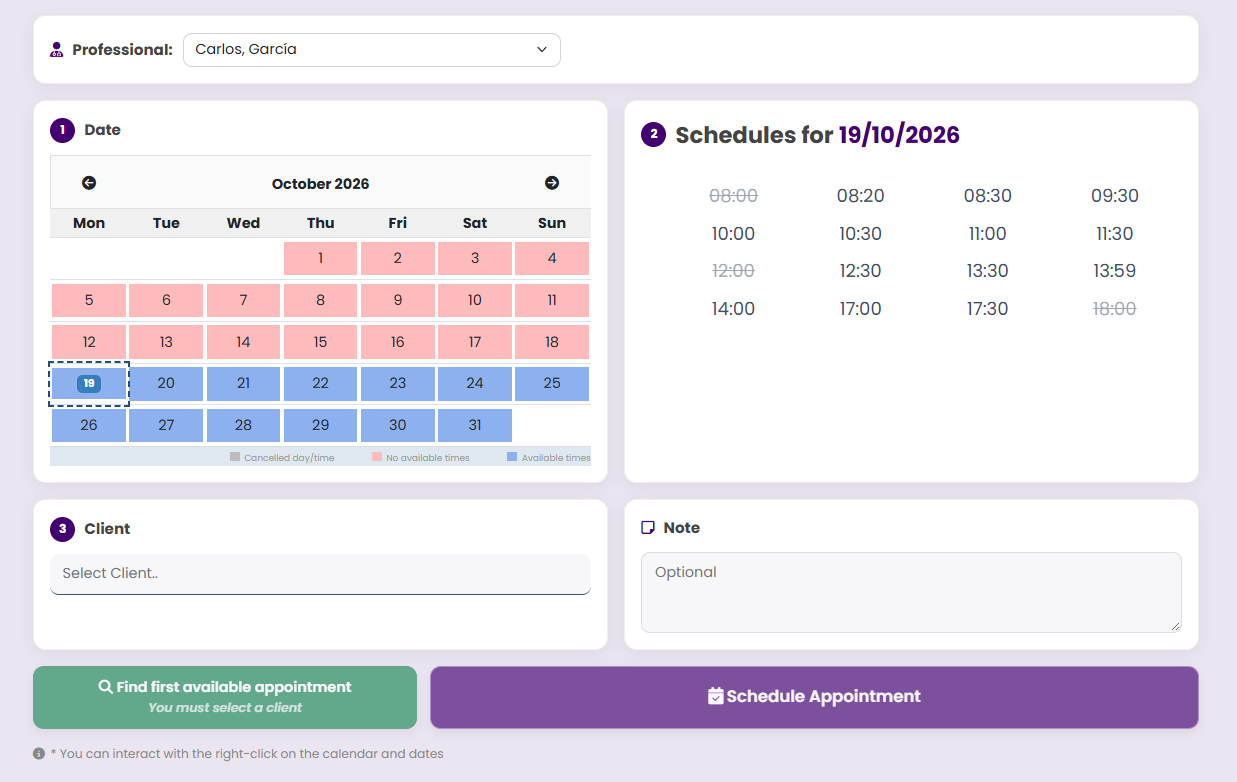
- Professional (Admin only): choose who the appointment is for.
- Calendar: select a day. Green days have available times; red days don't.
- Available times: pick a time. You can also use Find first available appointment. These times come from Settings › Schedules.
- Client: search the list or create a new one on the spot. Double-check the phone and email: they are used for emails and WhatsApp.
- Note: describe the work to be done (optional).
- Click Book Appointment and confirm in the summary window.
capturas/04-nueva-cita.png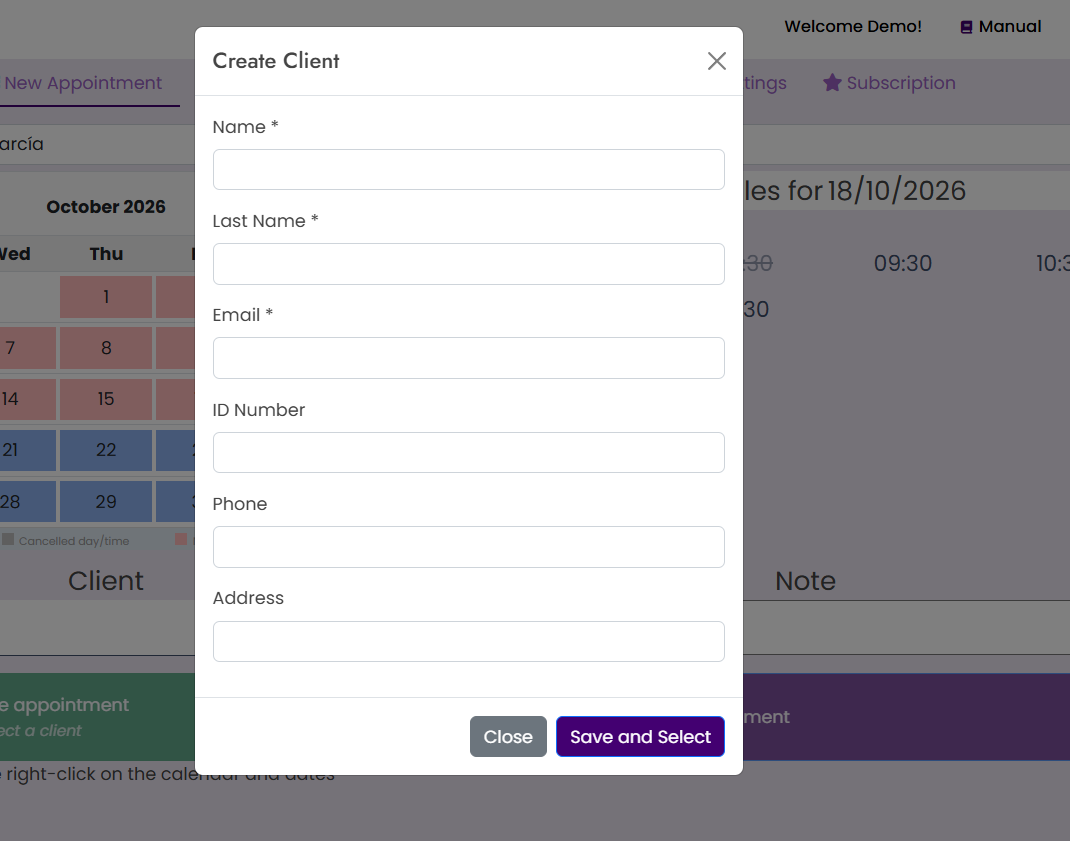
capturas/04-crear-cliente.png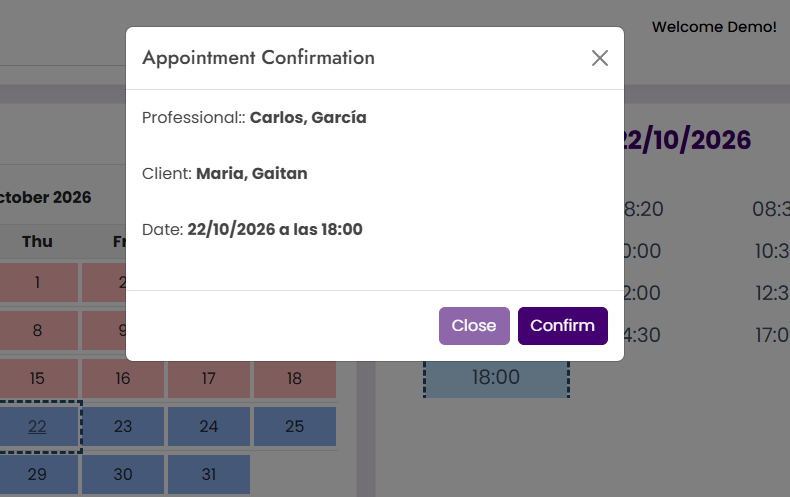
capturas/04-confirmar.pngBlock days and times
Right-click a day on the calendar to block the whole day, or a time slot to block just that hour. Blocked times are not offered to clients.
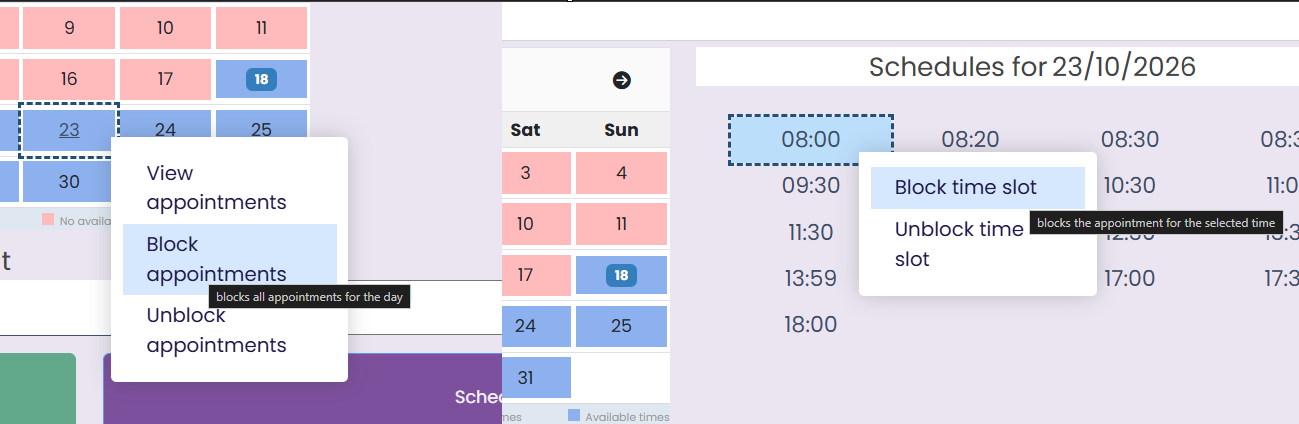
capturas/04-bloqueo.png5 Client requests
Here you'll find the appointments your clients requested online and those they cancelled.
| Table | Actions |
|---|---|
| Requests created by clients | Confirm the appointment or Delete the request. The Confirmed by client column shows whether the client validated their email. |
To spot them quickly, rows blink according to their status (same as in the History):
| Color | Status |
|---|---|
| Yellow | Created by client (email not yet validated) |
| Green | Confirmed by client (ready to confirm) |
| Red | Cancelled by client |
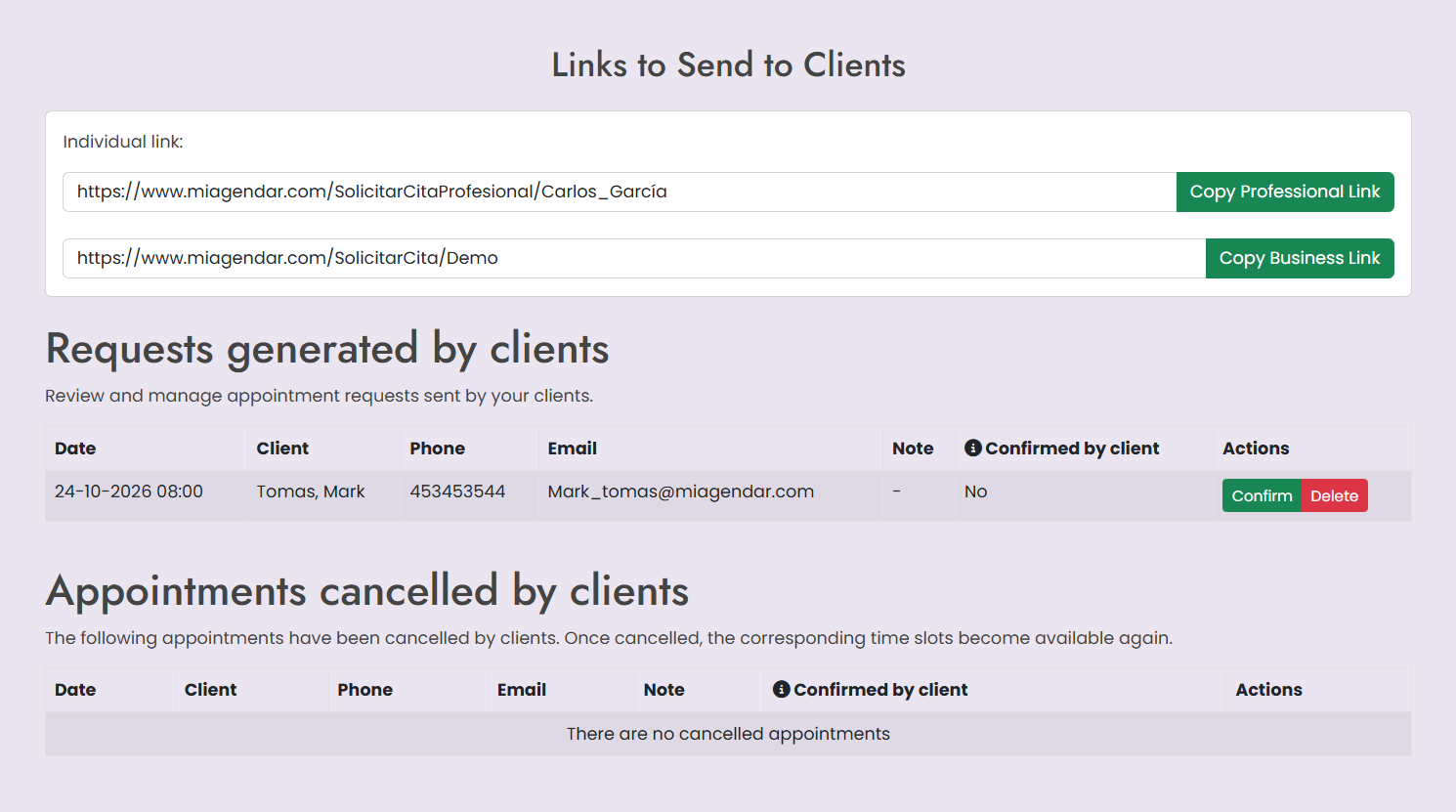
capturas/05-solicitudes.pngLink for your clients
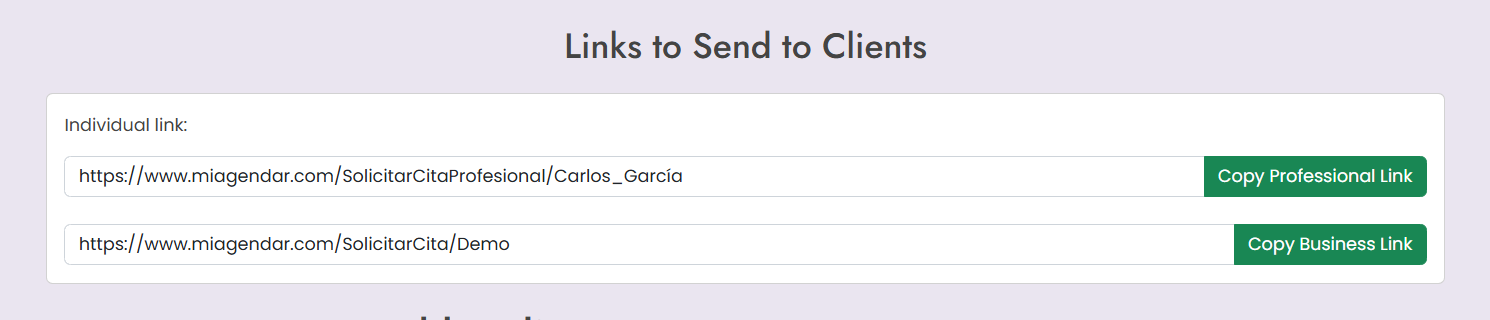
On this same screen you'll find two links, each with a Copy link button:
- Individual link: books directly with one professional.
- Business link: the client chooses the professional.
Share them on social media, WhatsApp or your website.
capturas/05-enlaces.png6 Clients
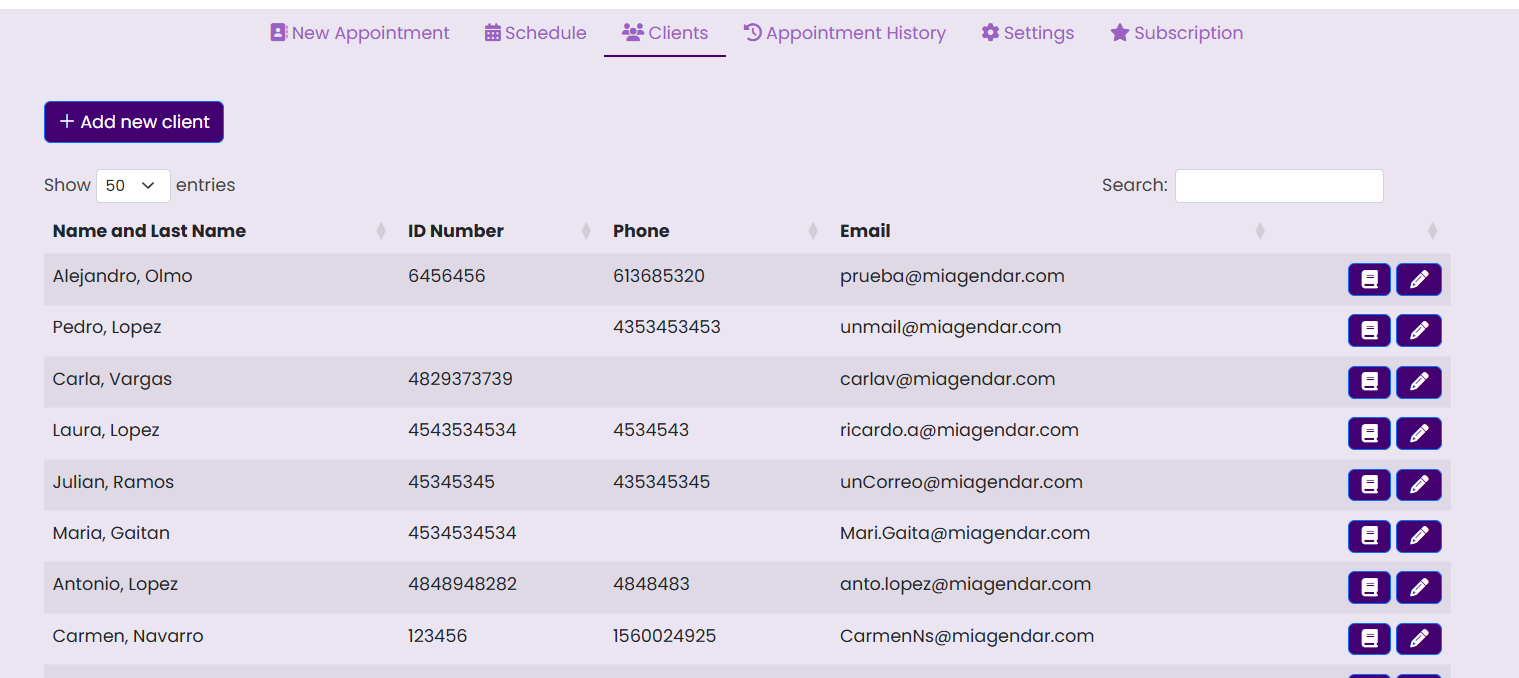
A list of all your clients with name, ID, phone and email. You can search and sort the table.
- + Add new client: creates a client.
- 📖 History: shows the client's appointments, where you can edit or cancel them.
- ✏️ Edit: modifies the client's details.
capturas/06-clientes.png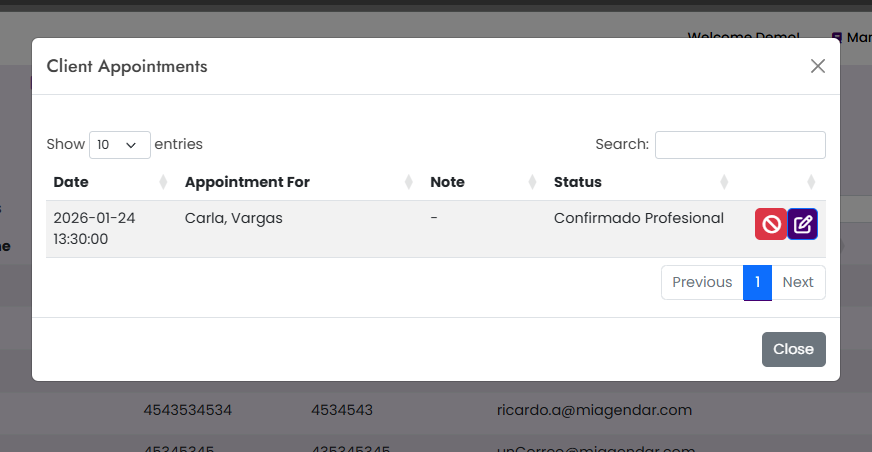
capturas/06-historial-cliente.png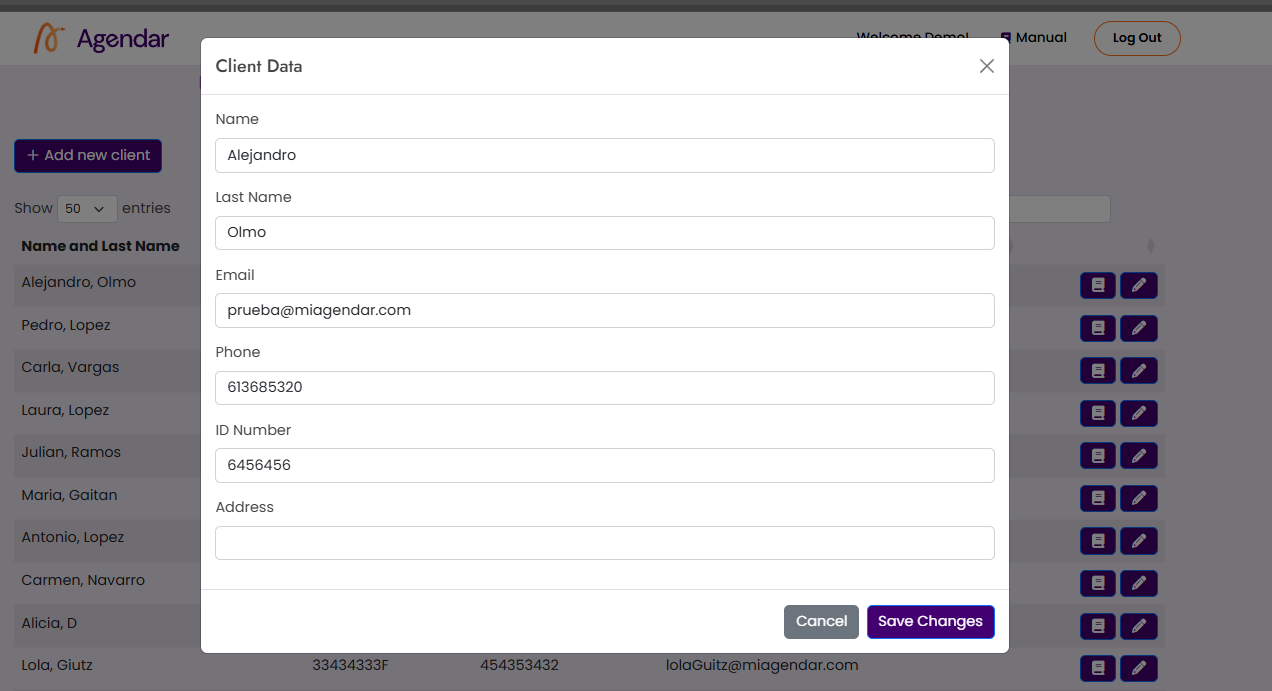
capturas/06-editar-cliente.png7 Appointment history
Shows all registered appointments, from the most recent to the oldest, paginated at 50 or 100 per page.
Filters
- Professional (Admin only): see everyone or a specific professional.
- Client: search by first name, last name, email or phone.
- Day or Month: filter by date (one at a time).
- Search applies the filters and Clear removes them.
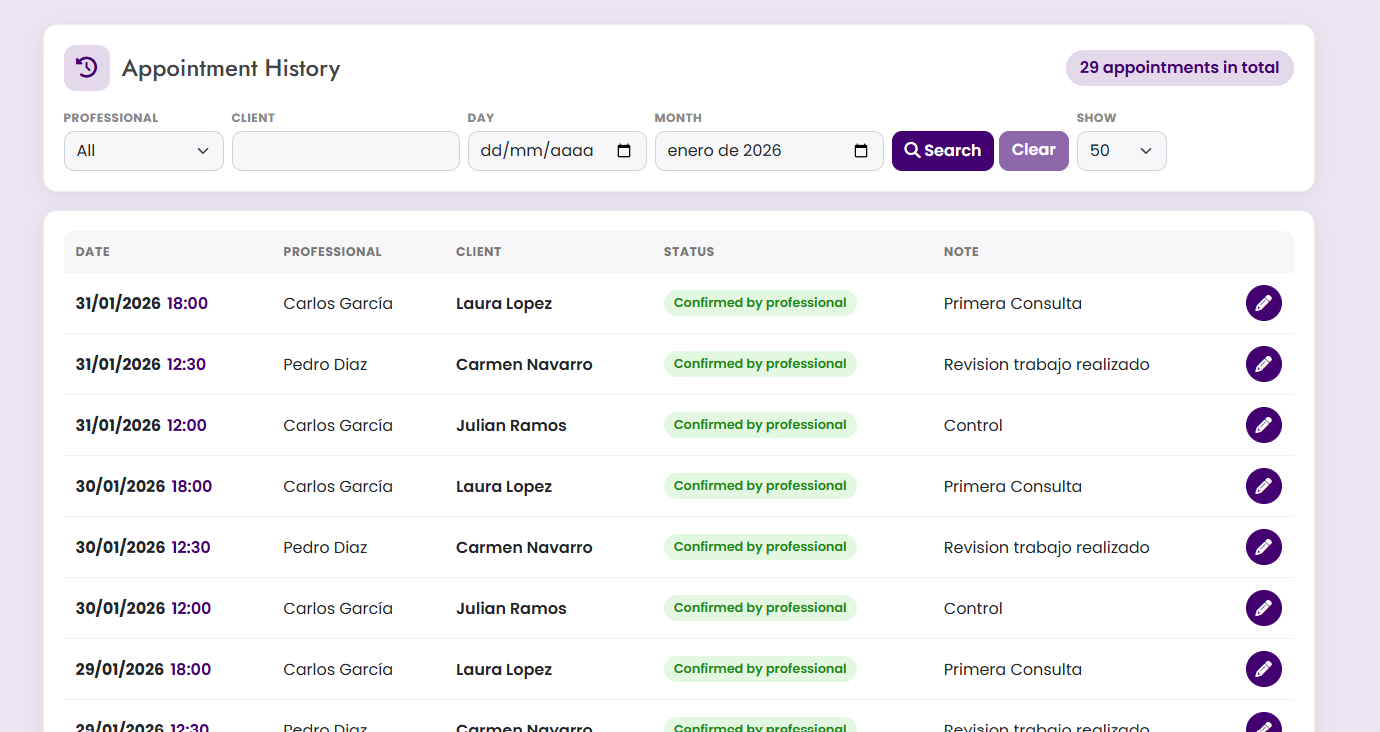
capturas/07-historial.pngColors and statuses
| Color | Status | Available action |
|---|---|---|
| Yellow | Created by client | ✔ Confirm |
| Green | Confirmed by client | ✔ Confirm |
| Red | Cancelled by client | ⦸ Confirm cancellation |
| No color | Confirmed by professional / Cancelled by professional | — |
Every appointment has the ✏️ button to change its date and time. If the note is long, hover over it to read it in full.
8 Settings
Available only to users with the Admin role. Each block can be expanded or collapsed.
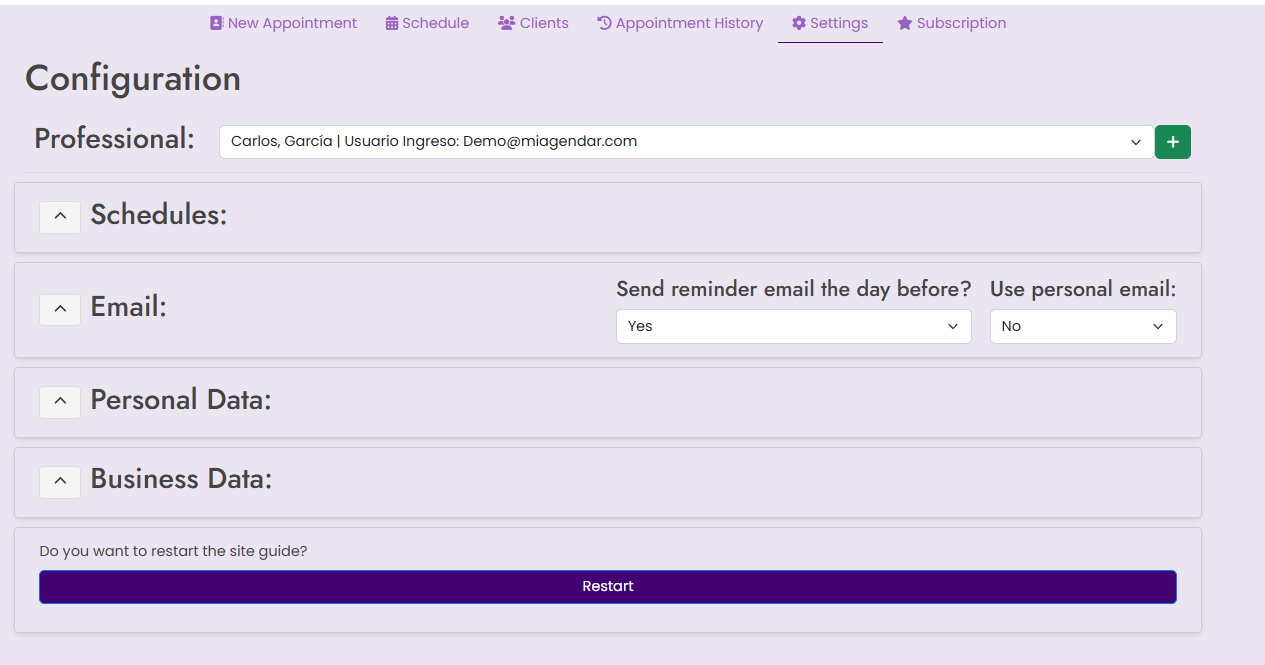
capturas/08-configuracion.pngProfessionals
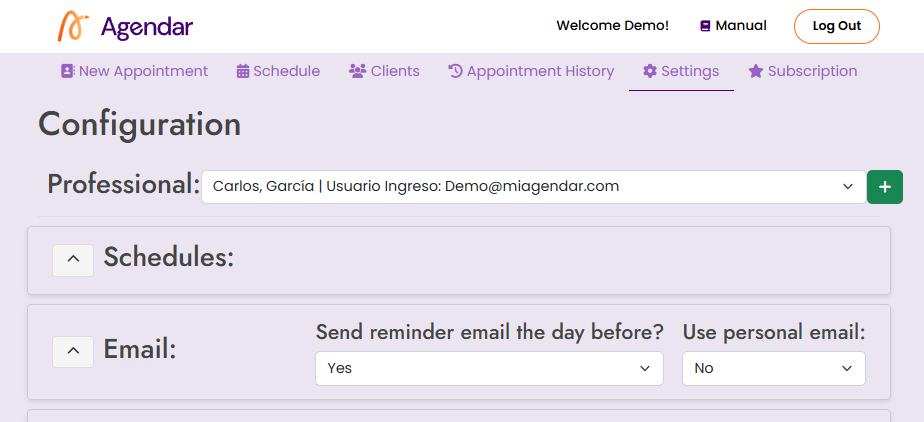
Select a professional from the list to configure their details and schedules individually. Use the + button to create a new professional with email (username), first name, last name and password.
capturas/08-profesionales.png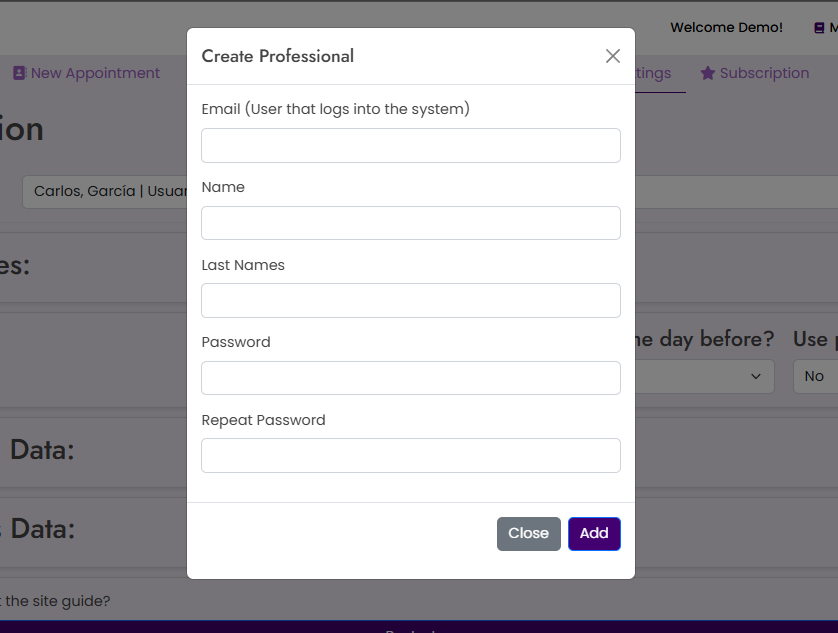
capturas/08-crear-profesional.pngSchedules
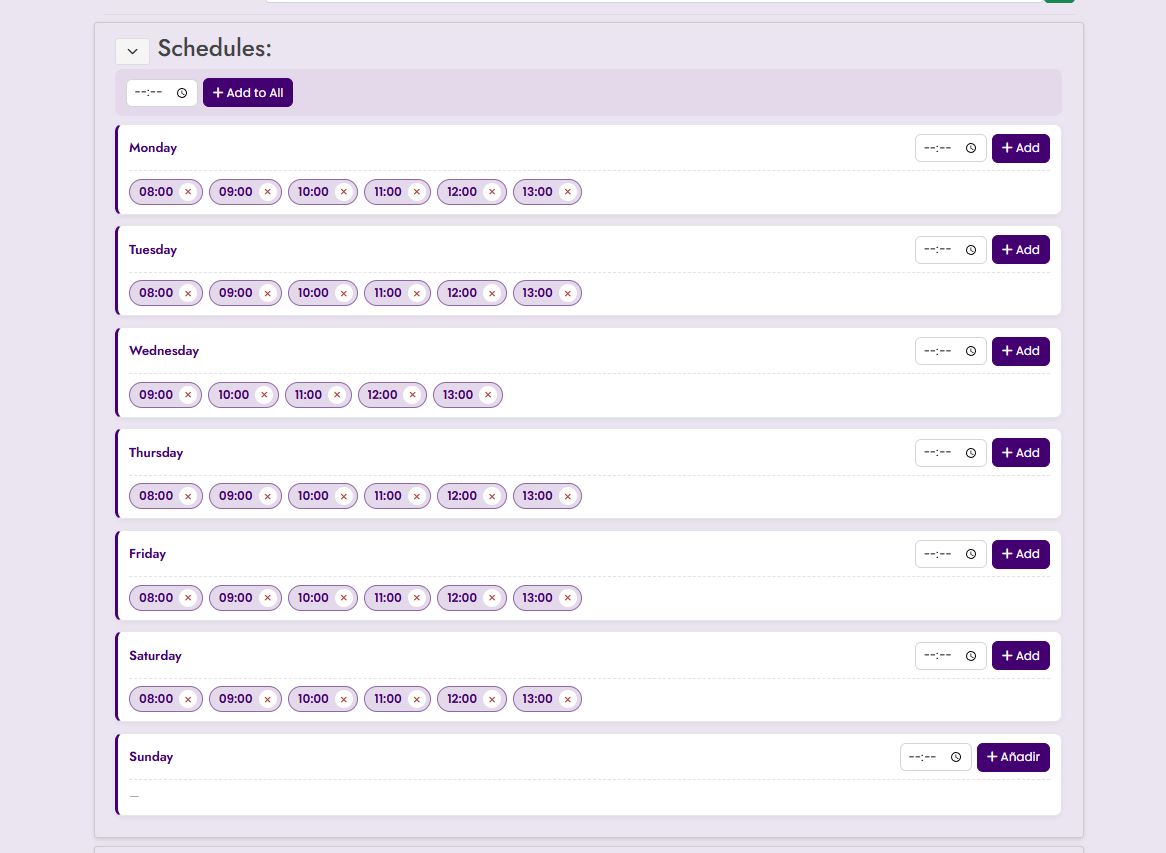
Define the hours the professional works on each day of the week. Enter a time and click Add, or use the general schedule to add it to every day. Remove a time slot with its delete button.
capturas/08-horarios.pngEmail and reminders
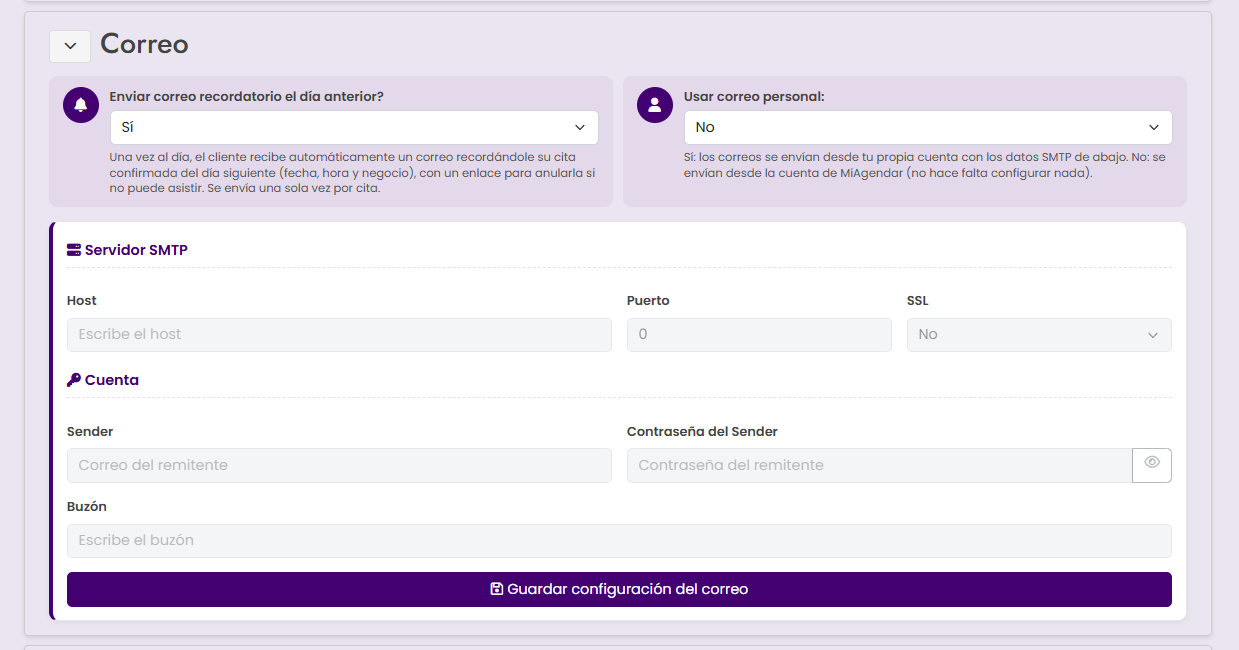
- Appointment reminder: if enabled, the client receives an email the day before.
- Personal email: if you have your own email account, set host, port, user, password and SSL to send from it. Otherwise the system email is used.
capturas/08-correo.pngPersonal data and role
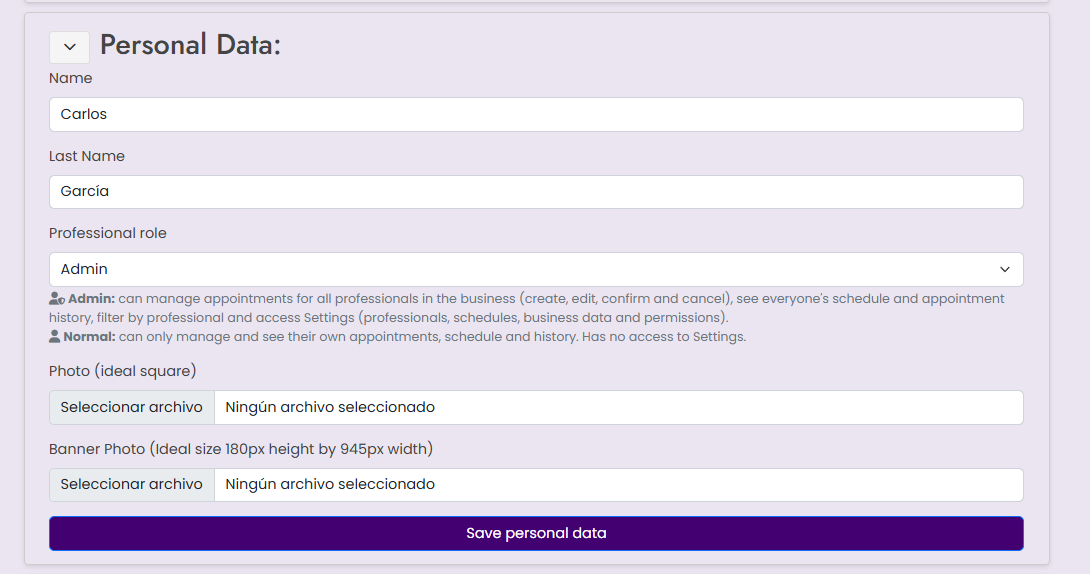
First name, last name, profile photo (ideally square) and banner (945 × 180 px). This information appears in emails and on the booking page.
The Professional role field defines their permissions (see Roles and permissions). You cannot change your own role.
capturas/08-datos-personales.pngBusiness data
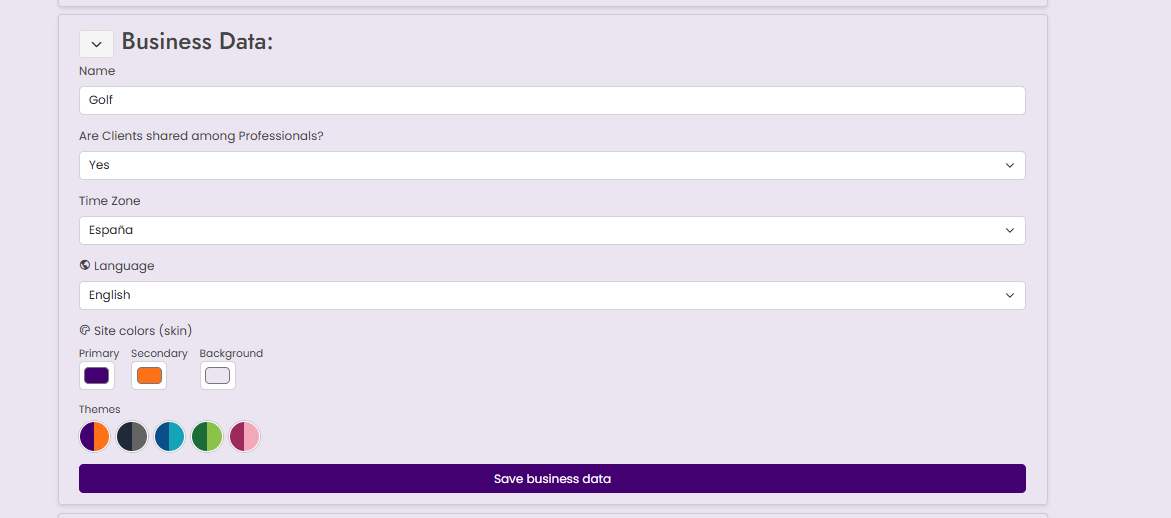
- Business name.
- Share clients between professionals.
- Time zone: important so appointment and reminder times are correct.
- Language: Español or English (applied instantly).
- Site colors (skin): choose the Primary, Secondary and Background colors. Lighter shades are calculated automatically.
- Themes: shortcuts with ready-made combinations (Original, Dark, Ocean, Nature and Pink). Clicking one loads its colors, which you can adjust before saving. Use Original to go back to the default colors.
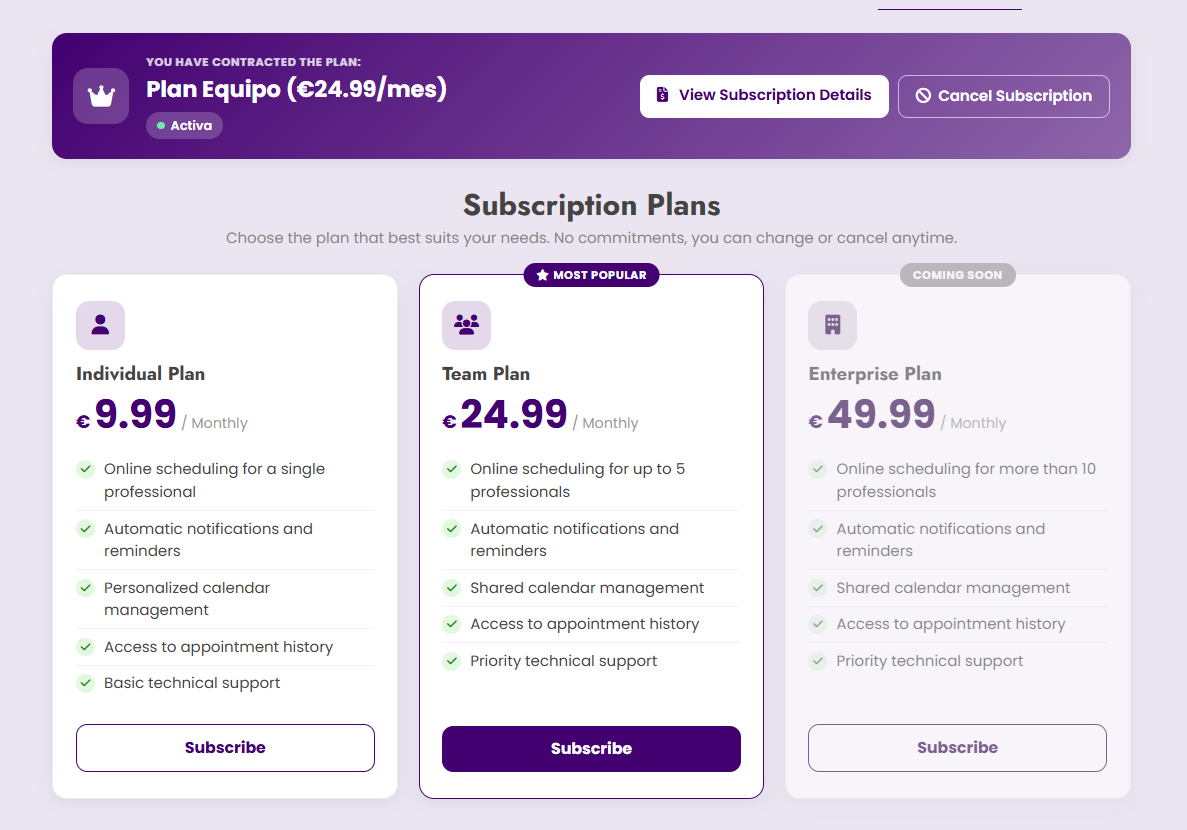
capturas/08-negocio.png9 Subscription
Shows your current plan (Individual, Team or Enterprise) and its status.
- View subscription details: opens the payment portal.
- Subscribe: purchase or change a plan.
- Cancel subscription.
capturas/09-suscripcion.png10 Online booking (client view)
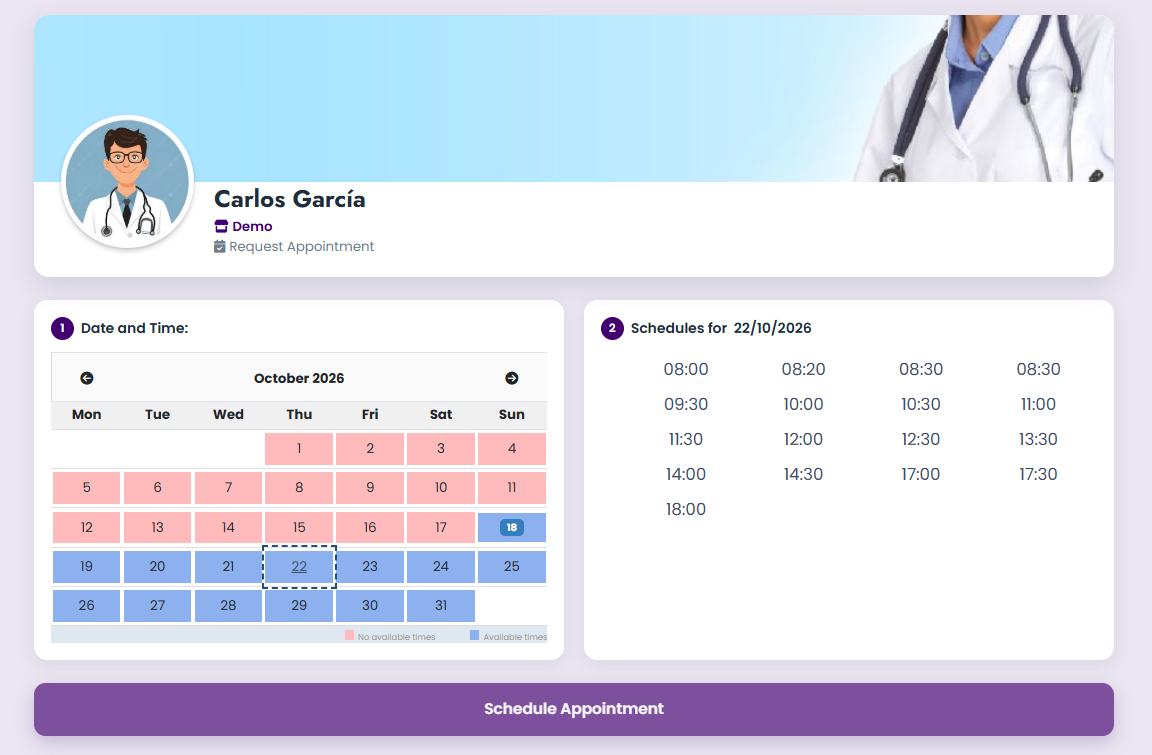
This is what your clients see when they open your booking link:
- They choose the professional (if using the business link).
- They select an available day and time.
- They fill in first name, last name, email, phone and an optional note.
- They click Book Appointment and confirm.
- They receive an email to validate the appointment.
capturas/10-reserva.png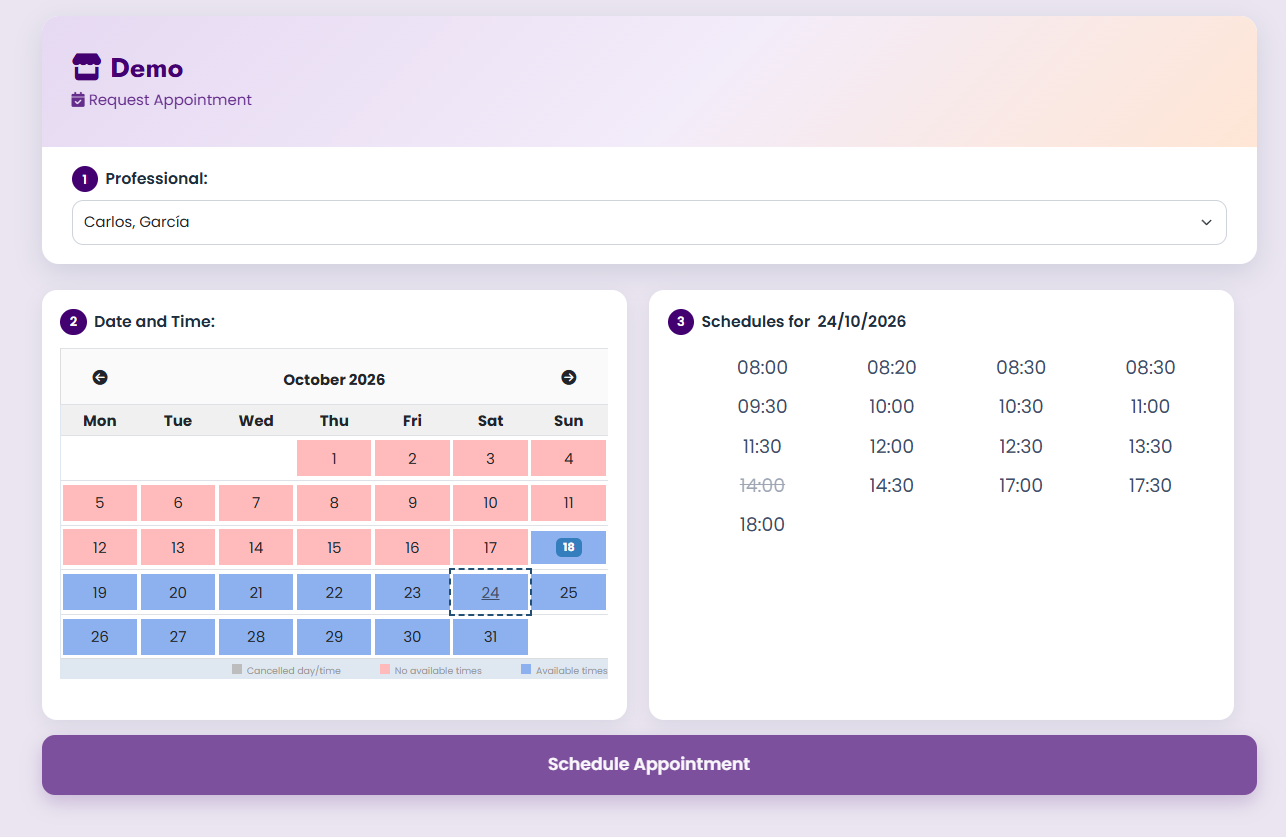
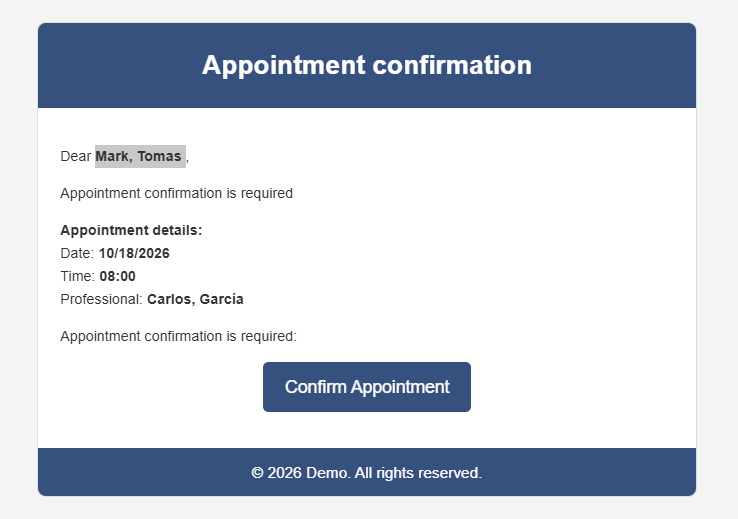
capturas/10-solicitar-cita.png11 Automatic emails
| When it's sent | |
|---|---|
| Appointment validation | When the client requests an appointment online. Once validated, it becomes "Confirmed by client". |
| Confirmation | When the professional confirms or creates the appointment. |
| Reminder | The day before the appointment (if enabled). |
| Cancellation | The email includes a link for the client to cancel. You'll see the cancellation in red. |
| Modification | When you change the date or time of an appointment. |
capturas/11-correo-confirmacion.png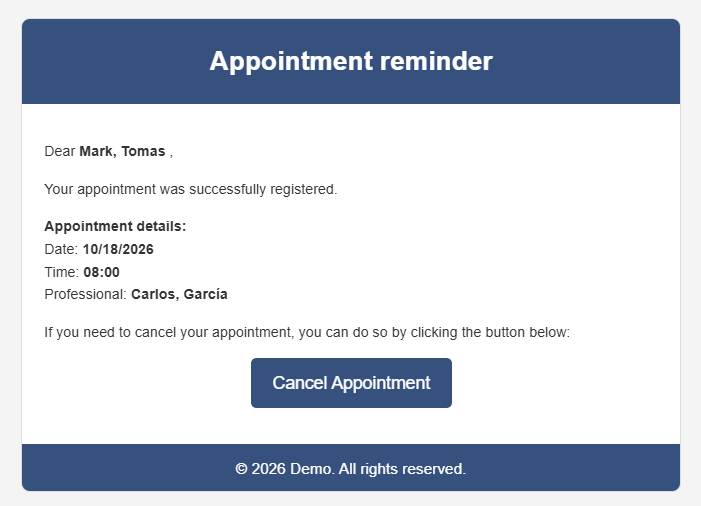
capturas/11-correo-recordatorio.png12 Roles and permissions
| Feature | Admin | Normal |
|---|---|---|
| Manage own appointments | ✔ | ✔ |
| Manage other professionals' appointments | ✔ | ✘ |
| See everyone's schedule | ✔ | ✘ |
| Everyone's history / filter by professional | ✔ | ✘ |
| Access Settings | ✔ | ✘ |
| Create professionals and assign roles | ✔ | ✘ |
13 Frequently asked questions
Why isn't a client receiving emails?
Check that their email is spelled correctly in Clients and ask them to look in their spam folder. If you use a personal email, verify the settings in Email.
How do I prevent bookings on a day I don't work?
Block it with a right-click from New appointment.
Appointment times don't match.
Check the time zone in Business data.
How do I see the help guides again?
In Settings click Restart guide.
A professional can't see Settings.
Only users with the Admin role have access. Change their role in Personal data and role.